
Signals and jacks
Pictures travel on wires. Numbers travel as signals: the music's level and hits, the tempo, an LFO, a macro. A signal moves a value through a mapping, and you make one by dragging.
Audio In
Audio In is the music as signals. Its card is twice as wide as the others: under its header a cassette whose reels turn with the level, what it listens to, the tempo and a green level meter with a falling peak; under that a row for each band with its last second and a half drawn as a curve.
It puts out eight signals:
| Signal | What it follows |
|---|---|
| Level | How loud it is overall |
| Bass · Mid · High | The low end (under 150 Hz), the middle (to 2 kHz) and the top |
| Kick · Snare · Hat | The hits, as an envelope that jumps on each one and falls back (the snare counts claps too) |
| Melody | How much of the sound is tune rather than drums (with the hits in Model mode) |
Each signal is levelled on its own as the music goes, so a quiet track still moves things and a loud one doesn't pin them.
What it listens to
Click the audio chip in the top bar, or the input in an Audio In's inspector (they're the same input):
- Computer audio: whatever the computer plays, with no cables or virtual devices. This is the default.
- Default input: the system's microphone or line in.
- Devices: every input device, such as an audio interface, a mixer with USB audio or a microphone.
- One app (macOS 14.2 and later): just one app's sound, say Spotify, so notifications and calls stay out. Velo waits for the app while it's closed.
Picking the computer's or one app's sound also turns on Follow the music, so the tempo comes from what plays.
On macOS
macOS asks before Velo can capture the computer's sound. If the chip says No audio: allow Velo in System Settings, open System Settings → Privacy & Security → Screen & System Audio Recording (or Microphone for an input), allow Velo, then reopen it.
Hits: Simple and Model
Select the Audio In to see how it finds the hits:
- Simple watches each hit's band rise, in dB. Its graph shows the rise and the threshold as a line: a hit where the curve crosses it. Drag the line to move it.
- Model uses a small drum network that runs live, trained on generated drums and a library of electronic music. Its graph shows the network's confidence and the line it fires at, which you drag the same way.
The tempo
The tempo chip in the top bar shows the BPM and a dot on every beat. The tempo comes from one of these:
- Tap: click the chip on the beat, or press T. The first tap is a downbeat.
- Typed: the chip's menu sets the BPM by hand and puts the downbeat on now. Setting it by hand stops following the music.
- Follow the music: Velo hears the tempo and shows how sure it is.
- Ableton Link: shares tempo and bar with Live, DJ apps and phones on the same network. The chip says how many peers it found.
- MIDI clock: from any port, picked up when it arrives.
The Beat node turns the tempo into signals: a hit on every beat and a ramp through the bar.
Mapping a value
There are two ways to make a signal move a value, and they make the same link.
From the deck. The deck along the bottom shows every source moving live. Drag one (say Kick) onto any slider in the inspector. The slider now shows the range the signal can take it to and where it is right now.
From a signal's card. Drag from a signal's output port (Audio In's Bass row, an LFO) onto any card. The card's values open in a list; pick one and a new jack slides out of the card's foot for it, the cable snapping in.
A value can follow several signals; they add up.
Changing a link
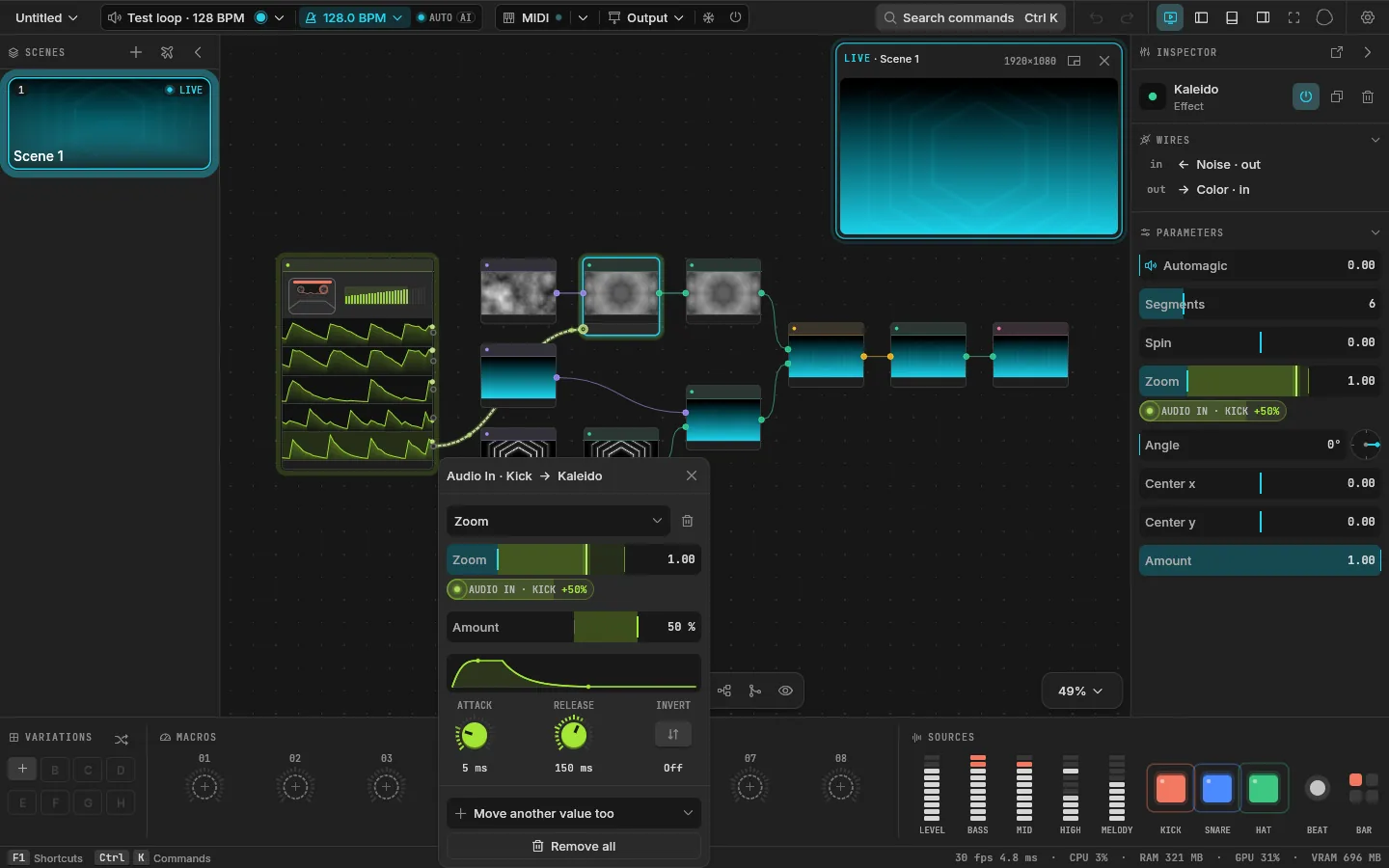
Click a mapping's green chip under its slider, or click its cable on the canvas, to open its popover:
| Setting | What it does |
|---|---|
| Value | Which of the card's values it moves; Move another value too adds one |
| Amount | How far it moves the value, either way. Alt and drag on the slider sets it too |
| Attack | How fast the value rises when the signal does |
| Release | How slowly it falls back |
| Invert | Turns the signal upside down |
| Remove all | Takes the link off |
The envelope screen in the popover draws the attack and release, and the part a knob sets lights up as you point at it.
Jacks
A signal plugged into a card goes into a jack at the card's foot, one line each: where it comes from and what it moves, such as Audio In · Mid → Smoke. The whole card, jacks included, sits inside one border that glows with the beat.
Moving a signal's cable
A signal's cable comes out of its jack like a wire:
- Onto another card: that card's values open. Pick one and the cable plugs in there; the old card lets go of it. It's one undo step.
- Onto nothing: the link is gone, and the cable springs back into its output.
Other signals
Signals and logic nodes turn numbers into other numbers. A few to start with:
- Beat Kick: a kick on every beat, as strong as the bass, and none while the bass is under its threshold. It stays on the grid where a heard kick misses or doubles, and goes quiet in a breakdown. Wire a Sequencer into its trigger for another rhythm, or another signal into
infor another strength. - LFO: a shape that repeats over a number of beats.
- Time: a ramp or a wave over a number of seconds.
- Sequencer: a value a step on each beat.
- Envelope: a rise and a fall on each hit.
- Remap: brings a signal into the range you want, smoothed.
- Math: two signals made one: added, multiplied, the larger.
- Probe: a picture read as a number (its brightness or a channel, over all of it, a part or a point), so a picture can move any value.
Each one's line in the node menu says what it does.