
Five minutes
From silence to a projector, with no manual. If any step here takes you longer than a minute, that's a bug: tell us.
1. Play some music
Velo hears what the computer plays: Spotify, a browser tab, a DJ app. No cables, no virtual devices.
The first time it opens, Velo shows its demo, already live: one scene called Velo, where Audio In's bands move a V of light. Press play anywhere and it moves.
The audio chip at the top left says what Velo listens to. Computer audio is the default. Click the chip to pick a microphone, a mixer or an audio interface instead; the choice is kept for this computer.
Nothing moves?
If the chip says Silence, nothing is playing, or the music plays through a device Velo isn't listening to. On macOS, allow Velo to capture the computer's audio when asked.
2. Add a visual
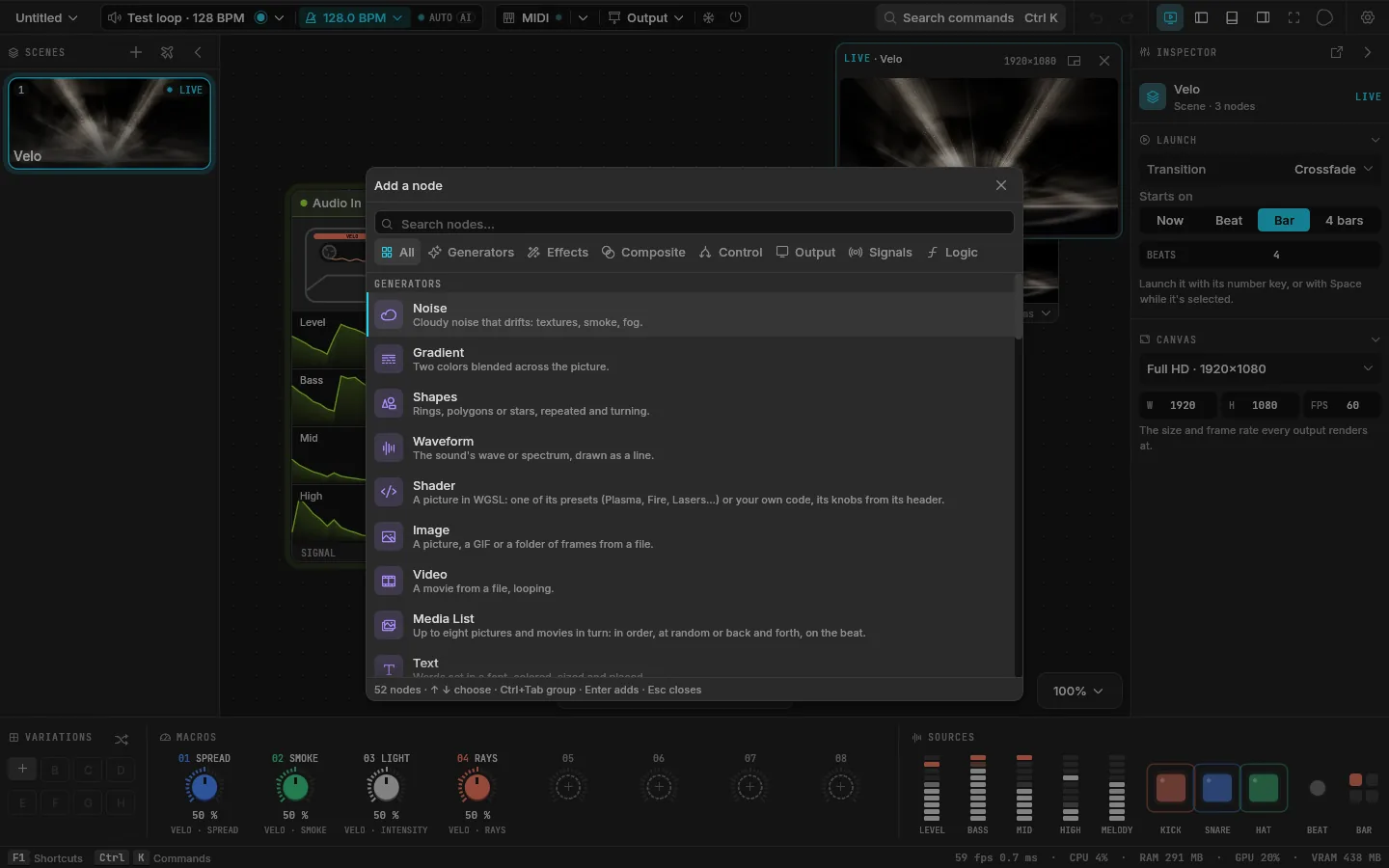
Click the empty canvas and press Tab. The node menu opens with every node, its icon and a line on what it does, a tab per group.
Type a few letters (kal for Kaleido, plas for the Plasma shader) or browse a group, then Enter.
- With a node selected, the new one is added after it and wired from it.
- To put a node between two others, click the wire that joins them and choose Insert a node.
- A node shows on the output once a wire leads from it into the Output node. Drag from a card's output port (on its right edge) to the Output's input.
3. Link it to the music
Select a node: its values appear in the inspector on the right. At the bottom, the deck shows every source moving live: the levels as meters (Level, Bass, Mid, High, Melody), the hits as pads that flash (Kick, Snare, Hat), the Beat and the Bar.
Drag Kick onto any slider in the inspector. Now the kick moves it. The slider shows how far the kick takes it and where it is right now.
Click the green chip under the slider to change the link: how much it moves the value, how fast it rises and falls back, or turn it upside down. Signals and jacks has the rest.
4. Send it out
Click Output in the top bar and pick a display. The picture goes fullscreen there, its shape kept, with no interface or cursor on it. Close it from the same menu.
While you play:
- B blacks the output out, and again brings it back.
- F freezes the picture; the scene keeps running underneath.
- T taps the tempo.
And then
- Press Ctrl K (Cmd K on a Mac) to find any command by name.
- The + above the scenes starts a new scene from a template: Velo, Tunnel, Kaleido Bloom, Pulse Rings or Liquid, each already moving with the music, with named macros.
- Press F1 for every shortcut.