
AI
Describe a visual and an AI builds it from Velo's own nodes: it adds a scene, the nodes and their wires, sets the values, maps them to the music, writes a shader if it needs one, then looks at the picture to check it. You can steer it from there in plain words.
There are two ways to bring an AI in, and they don't depend on each other:
- The AI panel inside Velo, with Claude Code, Codex or a model behind an API.
- An AI app driving Velo from outside, such as Claude Code, Claude Desktop or Cursor, through Velo's MCP server.
In the AI panel, How to connect an AI… shows both with the paths of your own install, ready to copy.
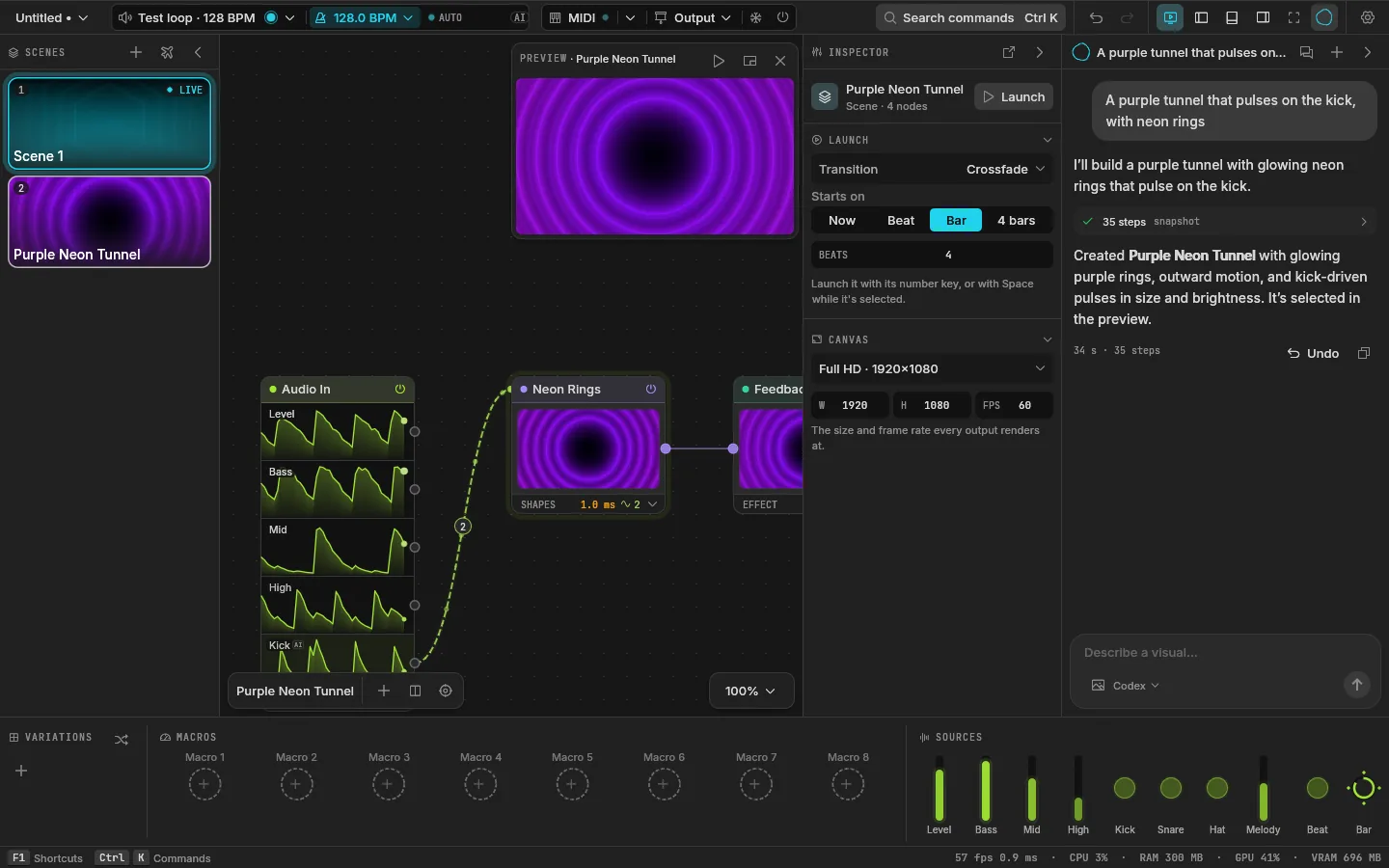
The AI panel
Press Ctrl I (Cmd I on a Mac) to open it, type what you want to see, and send.
- Pictures as references: attach them with the button under the box, drop them on the panel, or paste them. Models that can't look at pictures say so instead of getting them.
- Videos as references: attach, drop or paste (copied in the file manager) an
.mp4,.movor.m4vand its path goes into your message. The AI decides which frames to look at. HAP movies can't be looked at yet: give it an H.264 or ProRes copy. - The model and how long it thinks: under the box, from faster to smarter.
- Replies read like a modern AI chat: Markdown with code you can copy, each command it ran folded into one row, and problems as cards with a retry.
Which AI
| Provider | What it needs |
|---|---|
| Claude Code | The claude command, signed in (below) |
| Codex | The codex command, signed in (below) |
| Ollama, LM Studio | Nothing: found while they run on this computer, no key needed |
| OpenAI, Anthropic, Gemini, OpenRouter, Groq | An API key, pasted once and kept in the system keychain |
How to connect an AI
1. Claude Code inside Velo's AI panel
Velo runs the claude command, which keeps its own sign-in: being signed in to the Claude app isn't enough.
- Install Claude Code from claude.com/claude-code.
- In a terminal, sign in (it opens the browser):bash
claude auth login - Check it:
claude auth statusshould say"loggedIn": true. - In Velo, pick Claude Code under the AI panel's box.
Codex works the same way:
npm install -g @openai/codex
codex login
2. Claude Code, Claude Desktop or Cursor driving Velo from outside
They talk to Velo through velo-mcp, the bridge installed next to Velo itself.
- In Velo: Preferences → AI and agents → Let agents use Velo.
- For Claude Code, run this once in a terminal (the path is where Velo installs for you alone on Windows):bash
claude mcp add --scope user velo -- "C:\Users\<you>\AppData\Local\Programs\Velo\velo-mcp.exe"--scope useradds Velo in every folder. Without it Claude Code sees Velo only in the folder where you ran the command. - Start a new Claude Code session:
/mcplists velo.
Claude Desktop (Settings → Developer → Edit Config), Cursor and other MCP apps take the same bridge in their list of MCP servers, then a restart:
{
  "mcpServers": {
    "velo": { "command": "C:\\Users\\<you>\\AppData\\Local\\Programs\\Velo\\velo-mcp.exe" }
  }
}
On macOS
The bridge is inside the app: /Applications/Velo.app/Contents/MacOS/velo-mcp when Velo is in Applications.
What an agent can do
Through velo-mcp an agent sees what you see and works the way you do:
- list_nodes tells it every node kind, its parameters, the audio sources and how to write a shader;
- query_project reads the project, search_operators and run_operator find and run any command;
- snapshot shows it the picture, video_frames the frames of a reference video, and shader_errors what a shader got wrong;
- checkpoint closes its work as one step, and undo takes a step back.
Everything an agent changes until its checkpoint is one undo step for you: Ctrl Z takes it all back.
Preferences → AI and agents decides what agents may do. They can always read; you choose whether they may edit, touch the live scene (the audience's) and save. Every call they make lands in a log you can read.
The bridge talks to Velo only on this computer (127.0.0.1), and only while Let agents use Velo is on.